
If you’ve set up Link Logic (sometimes called “Advanced Logic”) on a custom contact field, expecting it to change the field’s available options based on which registration type or path someone is using, and it just isn’t taking — you haven’t misconfigured anything. This is a real, current platform limitation, confirmed directly by Cvent’s support team: the source question for Link Logic can only be another custom contact field. Registration type and registration path are not valid source options, even though it seems like they logically should be.
This guide covers what Link Logic actually does, why the registration-type approach doesn’t work, and the two features people successfully use instead to get the same practical result.
What Link Logic actually does
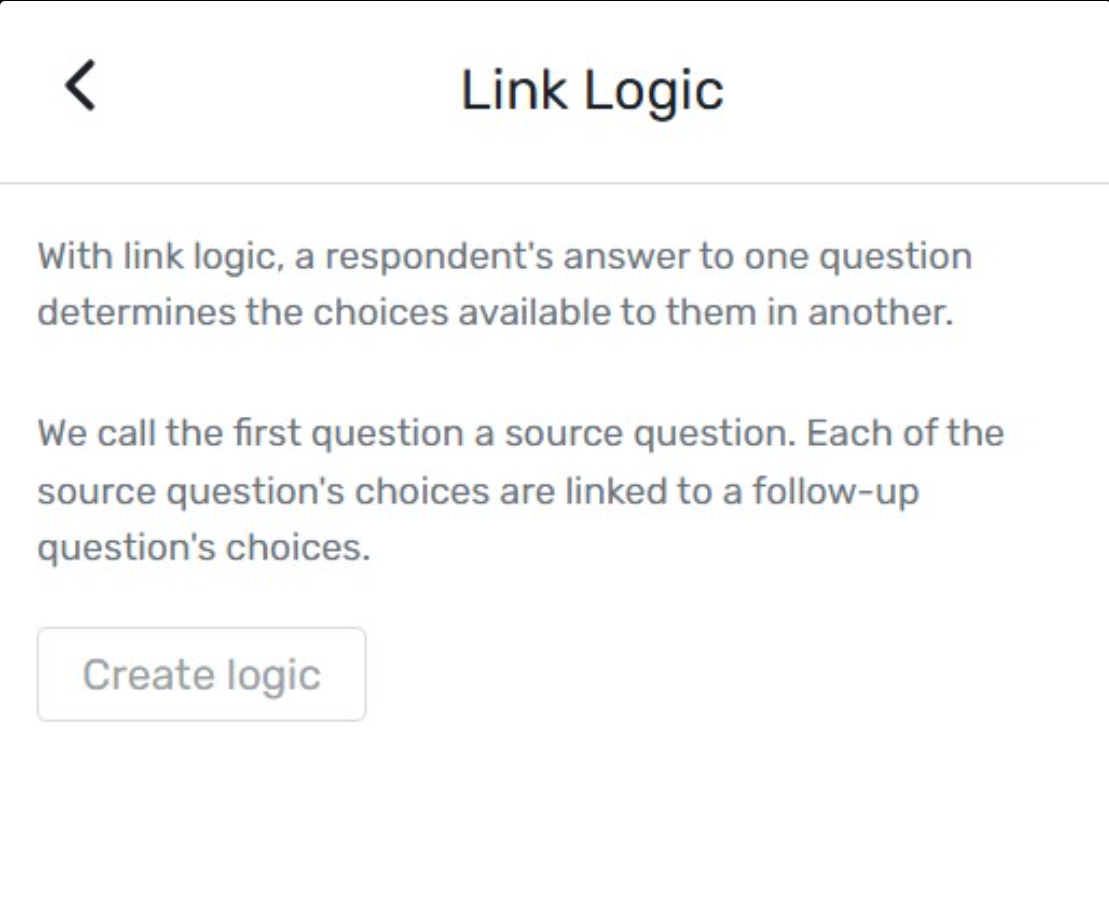
Link Logic lets you connect two custom contact fields so that the available answer choices on one field change based on what was selected in another. For example: a “State/Province” custom field that only shows relevant options once someone has selected their “Country” custom field first. That’s the feature working as designed — one custom field driving another.
Where people get tripped up is trying to use the same mechanism to drive a custom field’s options off something that isn’t a custom contact field — most commonly, registration type or registration path. As confirmed directly by Cvent support: that’s not an available source option, regardless of how the logic is configured. If your team has multiple registration paths sharing one custom contact field, and you want that field’s options to differ by path, Link Logic on its own cannot do this.
What to use instead, depending on what you actually need
If you need to hide or show a text widget based on registration type
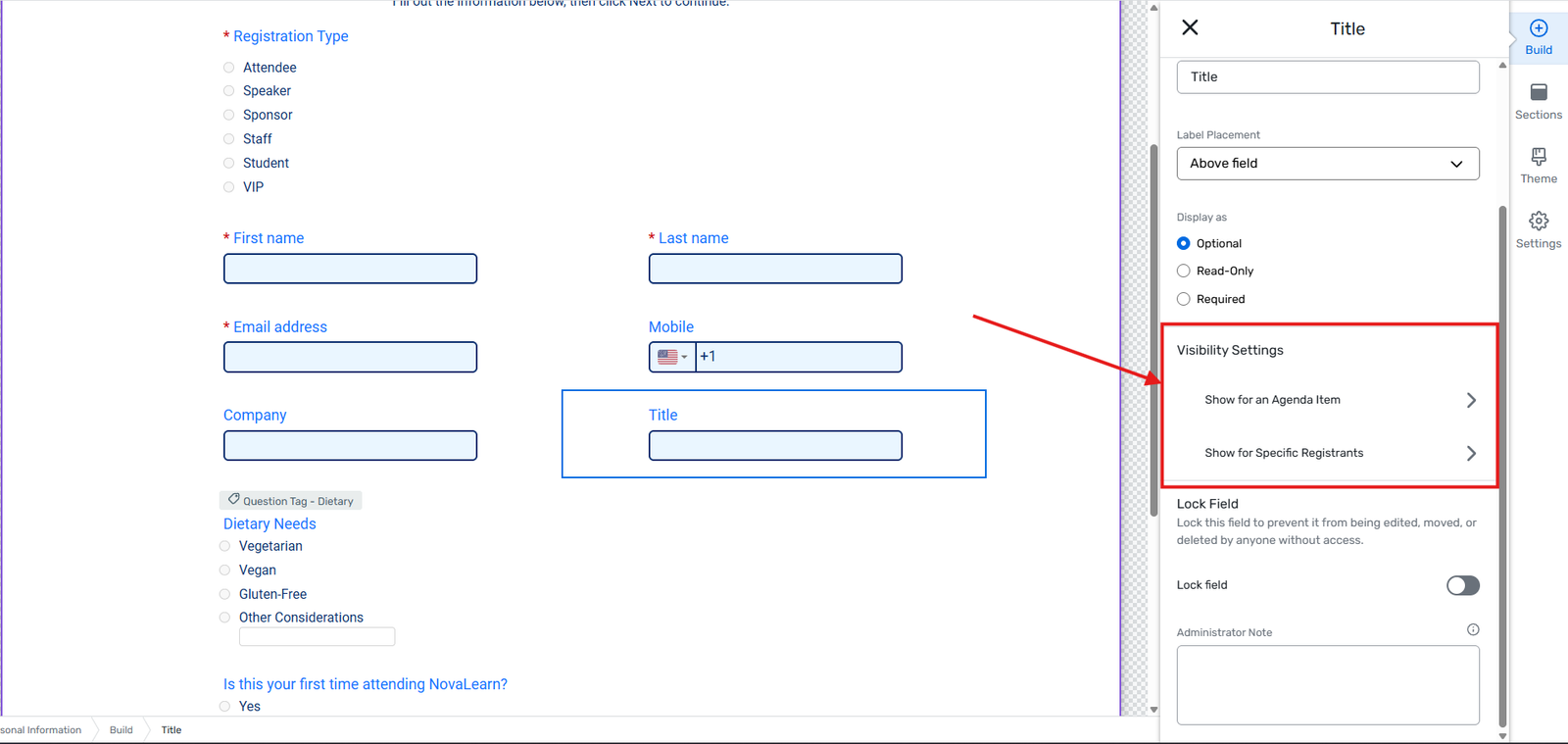
Use Widget Visibility Logic instead — a separate, related feature. It lets you hide or show text widgets (and certain built-in widgets, like hotel/travel booking blocks) based on conditions including a registrant-specific field, agenda items selected, or travel conditions. Registration type is accessible here too — it lives under Show for Specific Registrants, filed under contact fields in that widget’s visibility settings. This is the correct tool if what you’re actually trying to do is show different instructional text, banners, or messaging to different registration types on your site.
One real gotcha worth knowing here: the specific text a widget displays isn’t always editable from the widget’s own settings — some strings are actually generated by a different underlying condition than you’d expect. For example, hotel-widget text that looks like a generic “Book now” label may actually be tied to an air/travel request condition rather than the hotel condition itself. If a text change isn’t showing up where you expect, check Marketing → Language Management and search for the exact phrase — that’s usually where it actually lives, even when it’s not obviously connected to the widget you’re editing.
If you need an actual form field's behavior to change by registration path
Recreate the logic as a registration-level question with branching/conditional logic, rather than a custom contact field. Registration questions support conditional branches natively at the path level in a way custom contact fields currently don’t. It means duplicating some setup work if you were hoping to keep this at the contact-field level, but it’s the only way to get true path-dependent behavior today.
If this limitation is blocking something you actually need
Cvent support’s own guidance on this, direct from a staff response: if the lack of registration-type/path sourcing for Link Logic is a real blocker for your setup, submit it as a feature request under Participate → Product Ideas in the Cvent Community. This is a known, named gap — not a bug — and it’s the kind of thing the product team tracks demand for through that channel specifically.
Common issues and how to fix them
Link Logic’s source question dropdown doesn’t list registration type or path. Expected — only other custom contact fields are valid sources. Use Widget Visibility Logic or a registration-level branching question instead, depending on what you’re trying to control.
You changed widget text in the widget’s settings and it’s not updating on the live site. The text may actually be controlled through Language Management rather than the widget itself, especially for built-in widgets like hotel/travel blocks. Search Language Management for the exact phrase before assuming the widget setting is broken.
Widget Visibility Logic based on registration type isn’t showing as an obvious option. It’s filed under contact fields, via “Show for Specific Registrants” — not a separate top-level “registration type” condition. Look there first.
The takeaway
Link Logic on custom contact fields is intentionally scoped to only connect one custom field to another — it was never built to read registration type or path, and that’s confirmed by Cvent’s own support team rather than a workaround waiting to be discovered. If what you actually need is registration-type-based behavior, Widget Visibility Logic covers text and widget display, and registration-level branching questions cover form field behavior. Match the tool to what you’re actually trying to control, and you’ll skip the trial-and-error entirely.