
It is event day. You have a line of attendees waiting at the registration desk, but when your staff tries to open the OnArrival iPad app to check them in, they are blocked by a login error.
Before panic sets in, take a breath. OnArrival login failures are almost always tied to strict security settings configured in the Cvent backend. Here is your emergency troubleshooting guide to diagnosing and fixing the four most common OnArrival login errors so you can get the lines moving.
1. The "Insufficient User Rights" Error
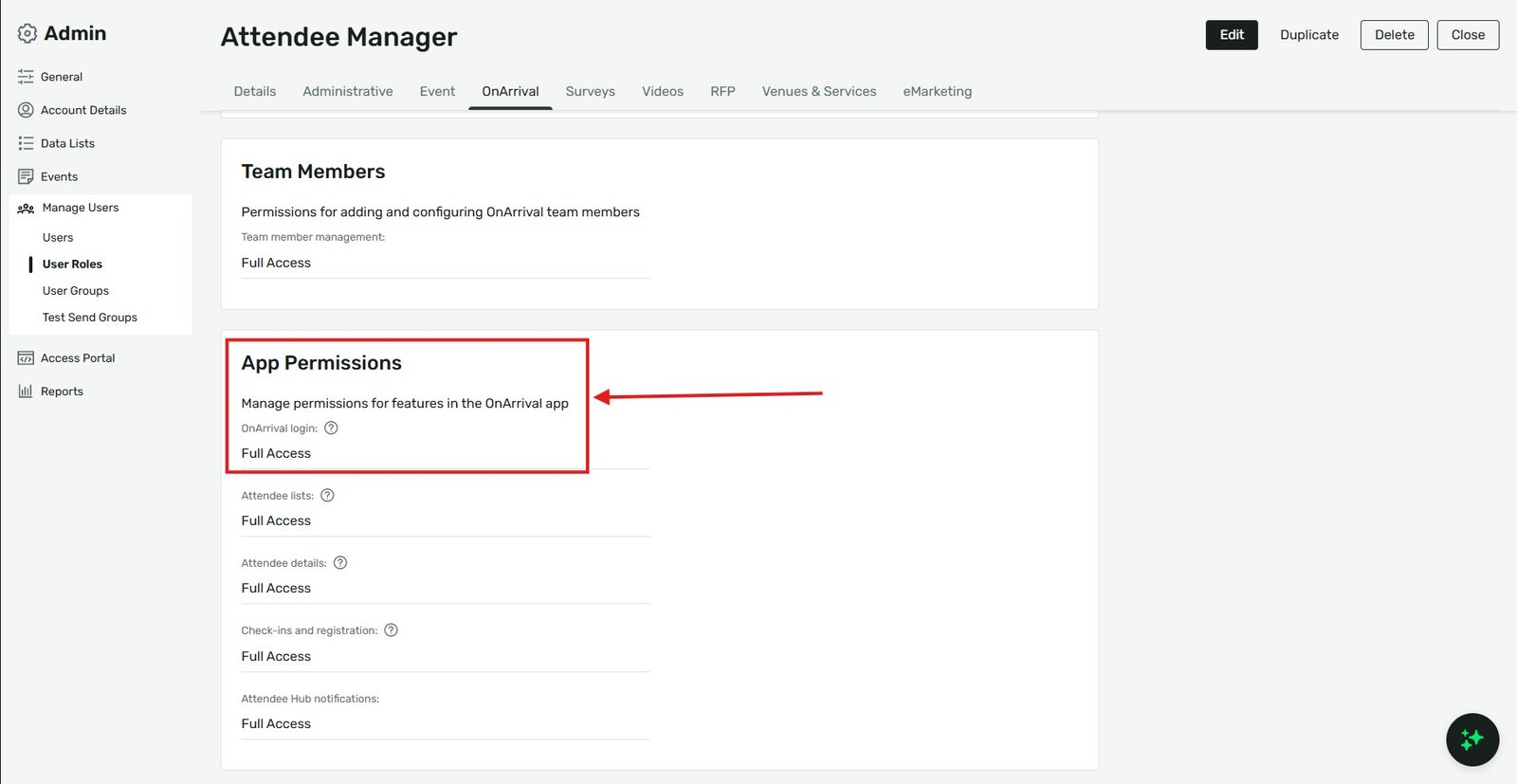
If a staff member successfully enters their password but gets an “Insufficient User Rights” message, their Cvent user profile does not have the explicit permission required to use the OnArrival app. Even if they are an admin in the main Cvent platform, they still need specific app access.
How to Fix It (Requires a System Admin):
Log in to the main Cvent Planner platform on a computer.
Navigate to the gear icon (Admin) in the top right corner (or the left panel in the new 2026 Cvent UI).
Go to Manage Users > User Roles.
Select the role assigned to your on-site staff (or edit their specific user profile).
Navigate to the App Permissions section.
Ensure that the OnArrival login permission is set to Full Access.
Save the changes and have the staff member force-close and reopen the app.
2. Failing to Login via SSO (Single Sign-On)
Many corporate planners assume that if their company uses Single Sign-On (SSO) to access the main Cvent platform, they can use the same SSO portal to log into OnArrival. This often results in failed authentications because OnArrival SSO is actually configured separately from Cvent Planner SSO.
How to Fix It:
If your staff is clicking “Log in with SSO” and getting an error, tell them to stop and switch to the standard Username and Password login method on the app’s home screen.
They should use the exact same email and password they use to access Cvent.com.
If your organization specifically requires SSO for OnArrival, an account administrator must configure it under the mobile app settings in the backend—it does not inherit the planner SSO settings automatically.
3. The App Requires an Event Code (But Won't Accept It)
Sometimes staff try to bypass logging in with an account and instead try to use an Event Code. If the app rejects the code or says “Event Not Found,” it is usually because the device is entirely logged out of the Cvent account ecosystem. Event codes only work to pull up an event after a valid account has authenticated the device, or if the event is set up for specific limited-access scenarios.
How to Fix It:
Do not rely on Event Codes for primary staff check-in.
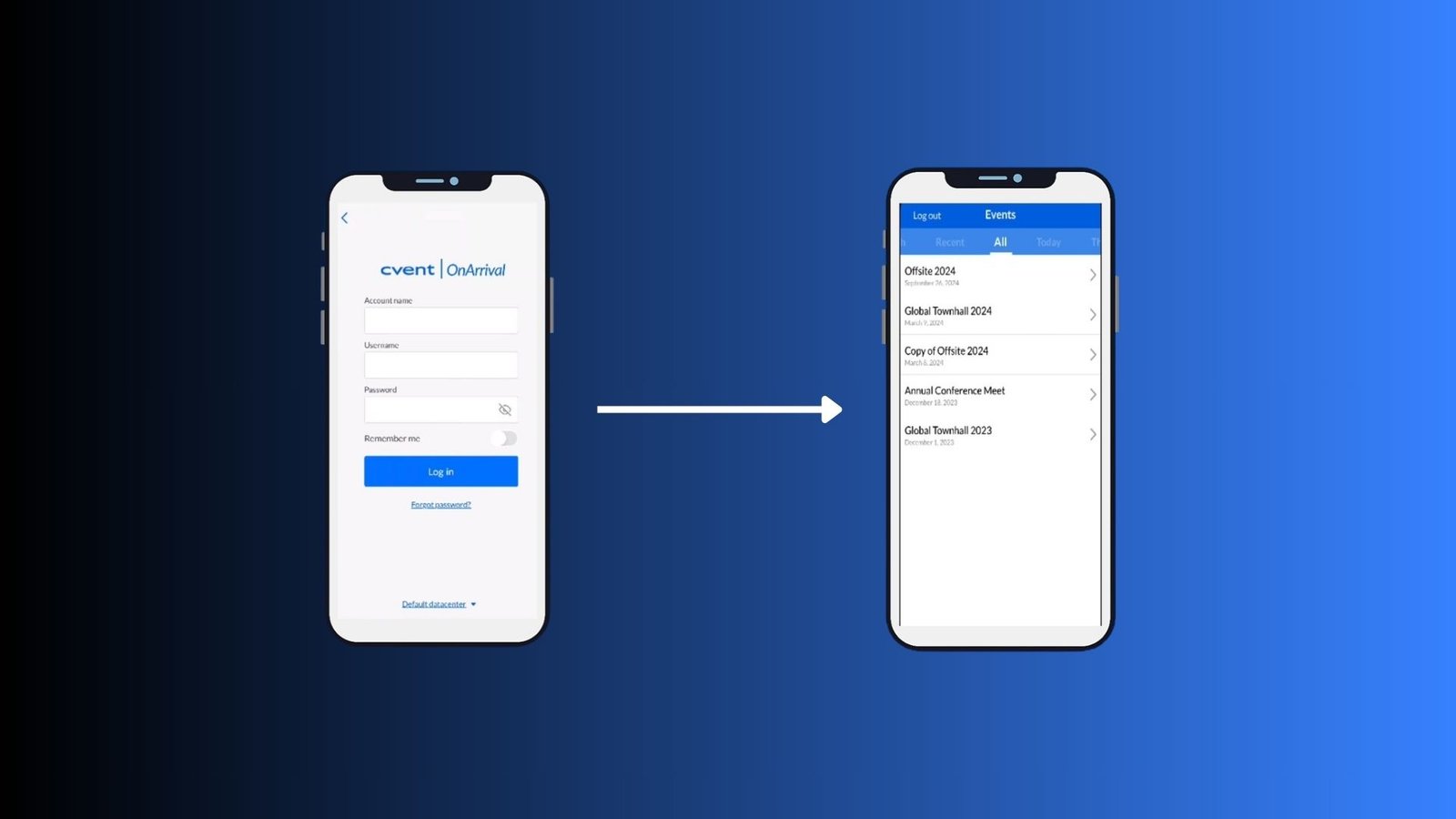
Tap the Back arrow to return to the main OnArrival login screen.
Enter the primary Cvent Account Name, Username, and Password.
Once logged in, the app will display a list of all active events associated with that account. Simply tap the correct event to download the attendee list.
4. The Device is Offline Before Authentication
OnArrival has a fantastic “Offline Mode” that allows you to check in attendees even if the venue Wi-Fi crashes. However, you must have an active internet connection to perform the initial login. If a staff member just unboxed a rental iPad and immediately tries to log in without connecting to Wi-Fi first, the app cannot communicate with Cvent’s servers to verify their password.
How to Fix It:
Exit the OnArrival app and go to the iPad/iPhone Settings.
Connect to a cellular hotspot, the venue Wi-Fi, or even a staff member’s personal phone hotspot.
Open OnArrival, log in, and select your event to download the attendee database.
Once the data sync is 100% complete, you can safely disconnect from the Wi-Fi and operate in Offline Mode for the rest of the day.
Agency Pro-Tip: Create a dedicated “On-Site Check-In” user role in Cvent. Strip away their ability to edit the event website or send emails, but grant them Full Access to OnArrival. Give this generic login (e.g., checkin@youragency.com) to temporary on-site staff so they don’t get locked out or accidentally change core event settings.
Key Takeaways
Check permissions first: The most common barrier is the “OnArrival login” setting under User Roles. It must be set to Full Access for anyone using the iPads.
SSO is separate: Cvent Planner SSO and OnArrival SSO are not automatically linked. Default to standard username/password logins for the app unless explicitly configured.
Internet is required for setup: You cannot log in or download the initial attendee list without a live internet connection, even if you plan to use Offline Mode later.
Use dedicated check-in accounts: Avoid giving temporary staff full Cvent Admin credentials just so they can run the check-in desk. Create limited user roles specifically for OnArrival.