
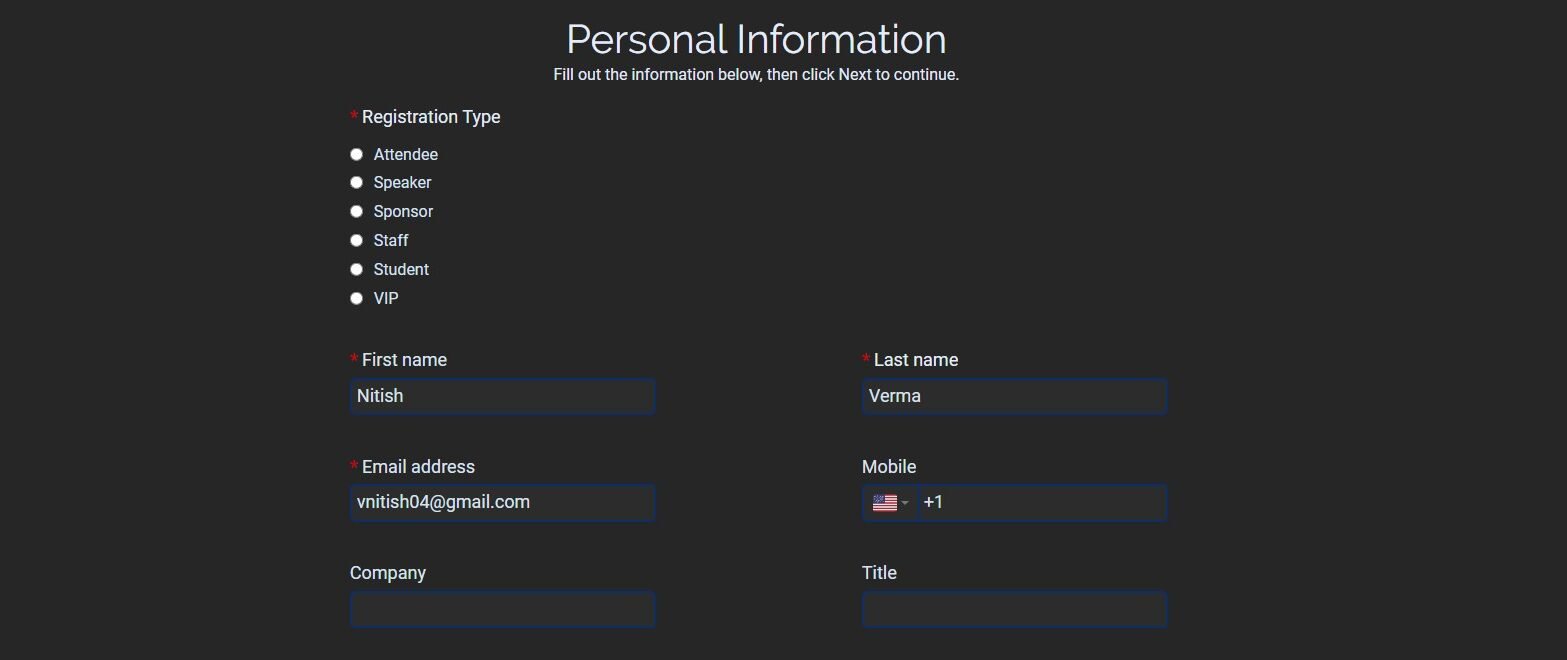
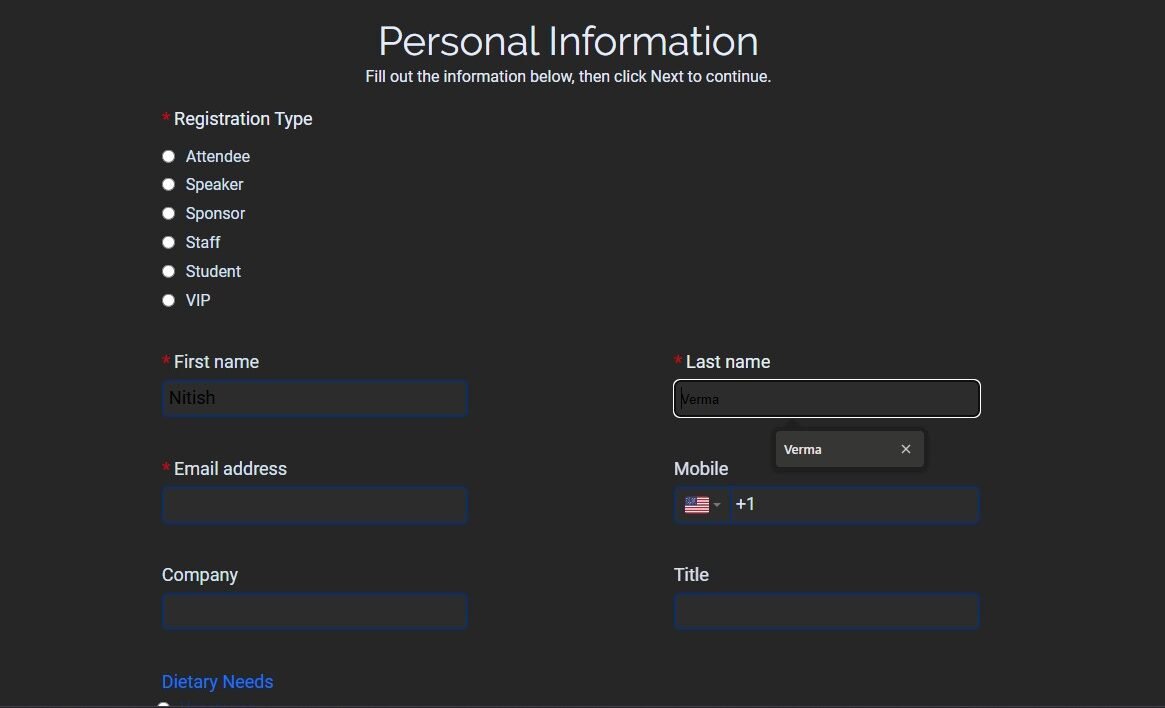
If you’ve built a dark-themed registration site in Cvent and started getting reports that form fields look broken or unreadable — specifically text that’s dark-on-dark right after Chrome autofills a name, email, or address — you haven’t misconfigured your theme. This is a well-documented, long-standing behavior in Chrome (and other Chromium-based browsers like Edge, Brave, and Opera) that affects any website with a dark color scheme, not something specific to how your Cvent site was built.
Why this happens (it's not a Cvent bug)
When Chrome autofills a form field, it applies its own hardcoded background and text styling to that field — overriding the page’s own CSS by design. This is standard behavior across the web, not unique to Cvent, and it’s been reported against dark-themed sites built on all kinds of platforms and frameworks for years. The practical result: your carefully set light text on a dark input field gets swapped out for Chrome’s default autofill look the moment a registrant’s browser fills it in, which often reads as unreadable black or near-black text on a dark background.
Because this override happens at the browser level, adjusting your Site Designer → Theme → Colors settings in Cvent won’t touch it — those settings control your page’s own CSS, and Chrome’s autofill styling sits on top of that, outside of Cvent’s normal styling reach. This lines up with what other Cvent users have run into when trying to override specific field text colors through the widget “customize” panel — Site Designer’s built-in color controls only go so far, and autofill styling is a case where they can’t reach at all.
The real fix: a targeted CSS override
The standard, widely-used fix is a specific CSS rule that targets Chrome’s autofill state directly, rather than trying to override it through normal color settings. It works by using an inset box-shadow trick to force the field’s background, paired with a property that controls autofilled text color specifically:
@keyframes onAutoFillStart {
from { }
to { }
}

input:-webkit-autofill {
animation-name: onAutoFillStart;
animation-duration: 0.001s;
-webkit-text-fill-color: #ffffff !important;
-webkit-box-shadow: 0 0 0 1000px YOUR_BG_COLOR inset !important;
box-shadow: 0 0 0 1000px YOUR_BG_COLOR inset !important;
caret-color: #ffffff !important;
Replace #1a1a1a with your site’s actual dark background color, and #ffffff with your actual light text color, so the autofilled field matches the rest of your form exactly rather than just “some dark color.”
How to apply this in Cvent
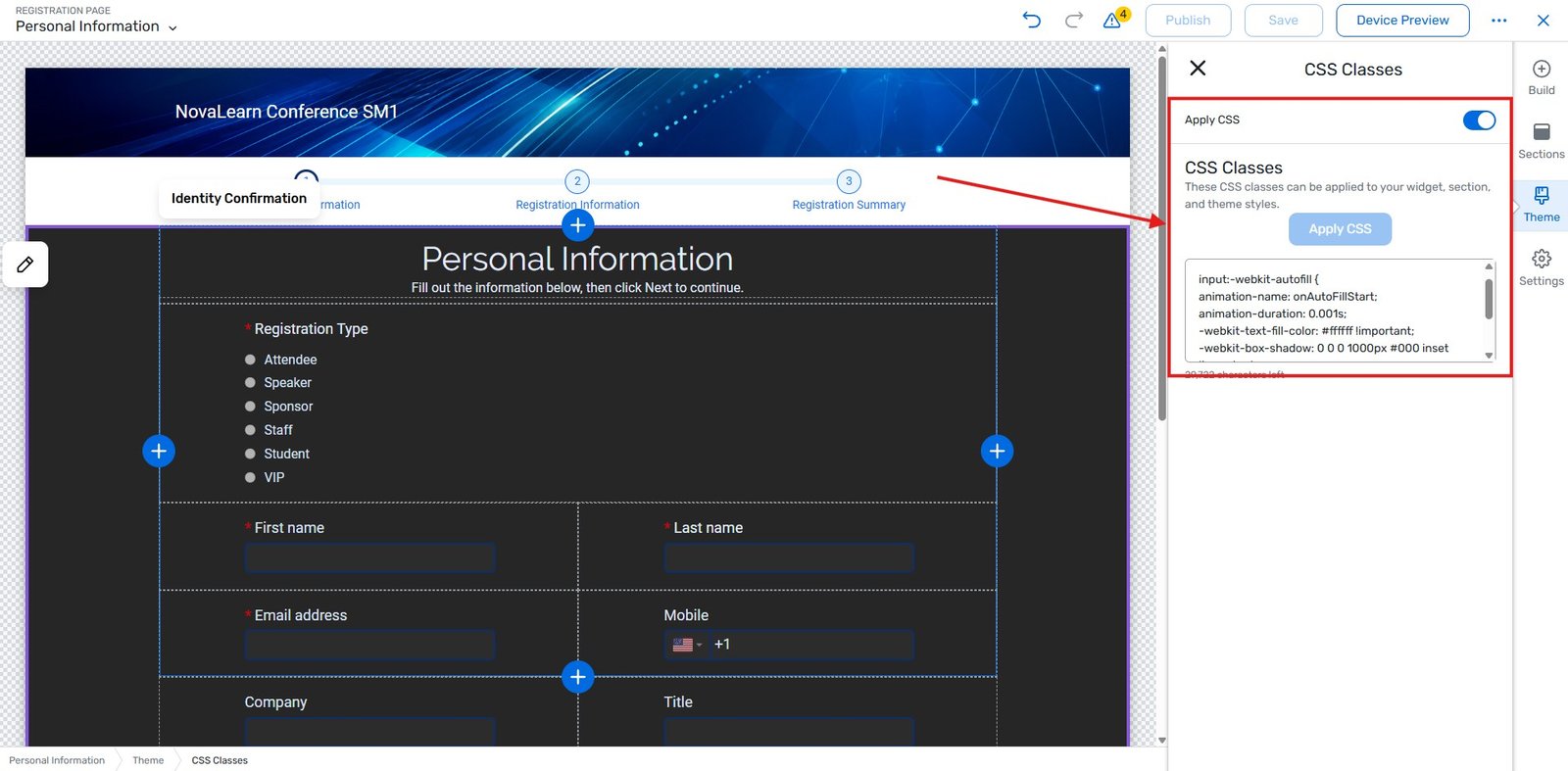
Cvent’s Theme/Color panel has no field for this. Go to the Website Editor -> Theme -> CSS Classes and paste this code snippet, replacing the background colour with your desired colour and publish it.
If you want this to be applied to only some specific section, you can add the styles to a specific class and apply that class to the section through the site editor.
Testing it correctly
This bug only shows up under specific conditions, so test carefully:
- Use actual saved autofill data in Chrome — typing text manually into a field won’t trigger the issue. You need Chrome to actually autofill from a saved profile (name, address, payment info) for the override to matter.
- Test in an actual Chrome (or Chromium-based) browser — this is a WebKit/Chromium-specific behavior. Firefox and Safari handle autofill styling differently, so a fix that works in Chrome won’t necessarily need duplicating elsewhere, but it’s worth spot-checking your form in at least one other browser too.
- Clear the page cache after adding the CSS — if you’re testing right after publishing the fix, a stale cached version of the page can make it look like the fix didn’t work when it actually did.
Common issues and how to fix them
The fix works in Chrome but the issue still shows up in Edge or Brave. Expected in some cases — apply the same CSS rule, since Edge and Brave are also Chromium-based and share this autofill behavior. The rule above already covers them since it targets the underlying -webkit-autofill state, not Chrome specifically by name.
You don’t see a Code widget option in Site Designer. This depends on your Cvent plan/site configuration. If it’s not available, this fix needs to be handled by Cvent support or a developer with direct access to your site’s CSS, since the standard visual editor doesn’t expose this level of control.
The override isn’t taking effect at all. Double-check the CSS was actually saved and published (not left in a draft state), and clear your browser cache — cached autofill styling or a cached version of the page is a common false negative when testing.
The takeaway
This is a real, common browser behavior — not a flaw in how your Cvent site was designed — and it affects dark-themed forms across the entire web, not just Cvent sites. Cvent’s built-in Theme and Color settings can’t reach it because it’s a browser-level override, so the fix has to go in as targeted custom CSS through a Code widget (or with help from Cvent support/a developer if that’s not available on your account). Test with real saved autofill data in an actual Chrome session, not by typing into the field manually, or you won’t see whether the fix actually worked.