
Before assuming something’s broken, it’s worth knowing that Cvent scopes both session visibility and session fee display fairly tightly by design — tied to admission items, registration types, and the fee configuration on the session itself. Most of the time, a missing fee traces back to one of a handful of specific settings rather than a platform bug. Here’s what to check, in order.
Cause 1: The session doesn't actually have a fee configured
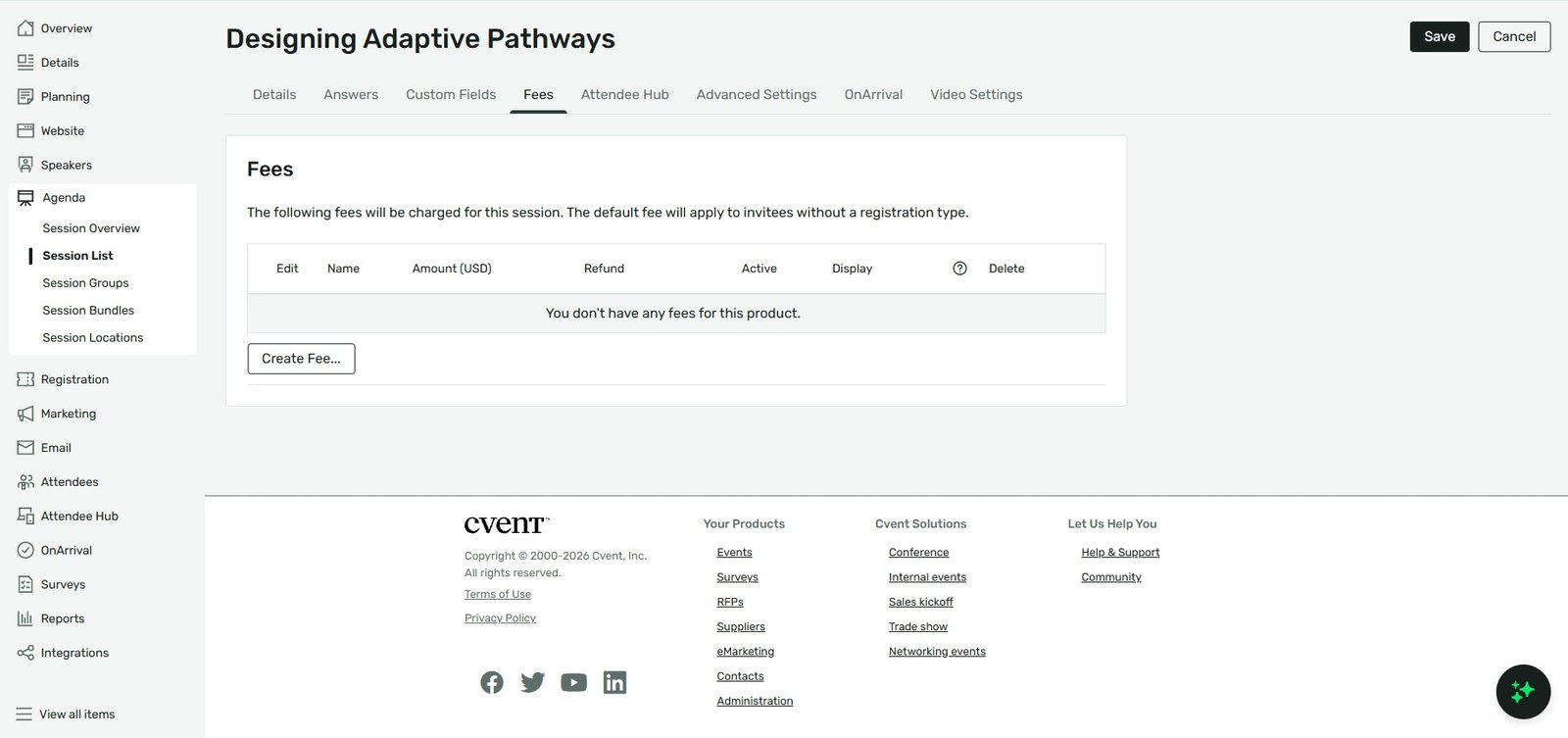
This sounds obvious, but it’s worth confirming directly rather than assuming: open the session and check its fee setting. Cvent gives you three options here — No fee, a simple fee, or an advanced fee with discounts or refunds. If “No” was selected (or accidentally left at the default), there’s nothing to display, and that’s expected behavior rather than a bug.
Cause 2: The session is excluded by the admission item's session rules
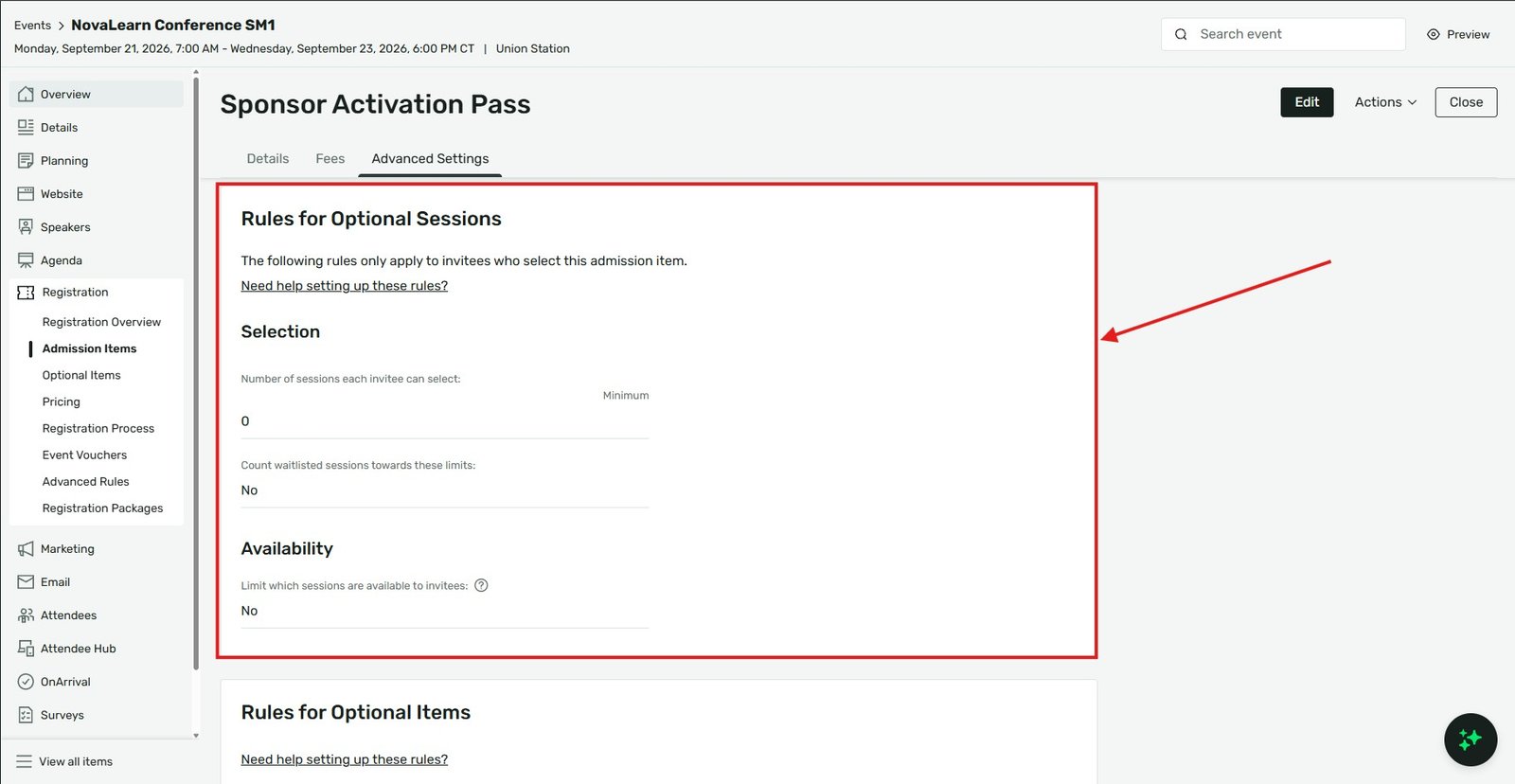
This is the most common real cause, and it’s easy to miss because it’s configured on the admission item, not the session itself. Cvent has a feature specifically for limiting which sessions are available based on the admission item someone selects — commonly used to make sure, for example, someone who bought a single-day pass only sees that day’s sessions.
Check: Registration → Admission Items → [the admission item] → Advanced Settings → Rules for Optional Sessions. If “Limit which sessions are available to invitees” is switched to Yes, only the sessions explicitly checked in that list will appear for someone using that admission item — everything else, fee included, simply won’t show. If the session you’re troubleshooting isn’t checked here, that’s your answer.
Cause 3: The session isn't scoped to the registration type you're testing with
Separate from admission item rules, session and fee visibility can also depend on registration type. If you’re testing as an admin or with a test account under a different registration type than your actual registrants will use, you may simply be looking at a scoping mismatch rather than a display problem. Always test session and fee visibility using an account under the same registration type and admission item your real registrants will have — not just an admin preview.
Cause 4: What you're missing is actually a tax or service fee, not the session price
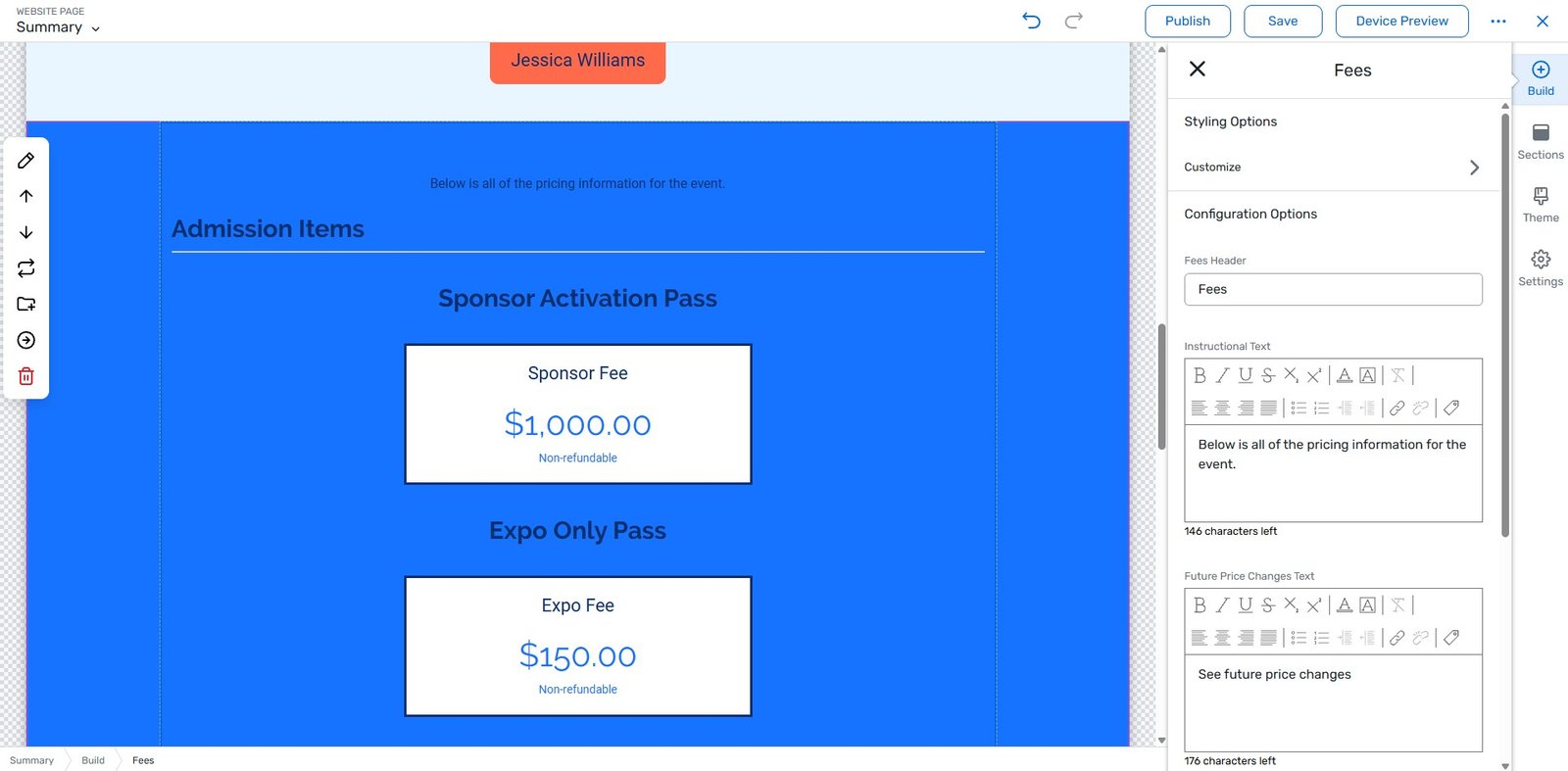
If the specific line item that seems to be missing is a tax or service charge rather than the base session price, that’s expected: Cvent’s Fees widget — the standalone widget used to display a pre-registration summary of prices — explicitly does not show taxes or service fees, by design. If your session’s base price is showing correctly and it’s only the tax/service component that seems absent, there’s nothing to fix; that’s documented behavior, not a bug.
Check both places fees can display
Cvent has two different places a fee might be expected to show, and they’re configured separately:
- The Fees widget — a standalone summary widget (added via Event Website → Customize → Product Information section) meant to preview pricing before registration begins.
- The session/item selection screen itself, during the live registration flow — where price typically displays inline next to each selectable session.
If a fee is missing from one but correctly showing in the other, you’re likely dealing with a widget-level display setting rather than a fee configuration issue — double check the specific widget’s settings rather than assuming the fee itself is misconfigured.
Testing checklist
- Confirm the session’s fee is actually set to a paid option, not “No fee.”
- Check the relevant admission item’s Rules for Optional Sessions — confirm the session is checked if session limiting is turned on.
- Register a test account under the same registration type and admission item as your real registrants, not just as admin.
- If a specific tax/service line seems to be missing, confirm you’re not expecting the Fees widget to show something it’s documented not to display.
The takeaway
A missing session fee on the selection page is almost always a scoping issue — either the session itself has no fee attached, or an admission item’s session-limiting rules are quietly filtering it out for the registration type you’re testing with. Check the fee setting first, then the admission item’s Advanced Settings, and always test as a real registrant type rather than relying on the admin view, which can mask exactly this kind of scoping mismatch.