
You spent hours designing the perfect event invitation, hit “Send,” and… crickets. Your key VIPs are emailing you to ask where their registration link is, or worse, attendees aren’t getting their confirmation emails with their QR codes.
When emails go missing in Cvent, the issue usually falls into one of three buckets: a configuration error on your end, a data hygiene issue with the contact, or a strict corporate firewall blocking the message. Here is how to diagnose the problem and get your emails delivered.
1. Check the Email Delivery Status (Bounced vs. Dropped)
Before guessing what went wrong, you need to see what Cvent’s servers are reporting. Cvent tracks the exact delivery path of every single email sent from the platform.
How to Check It:
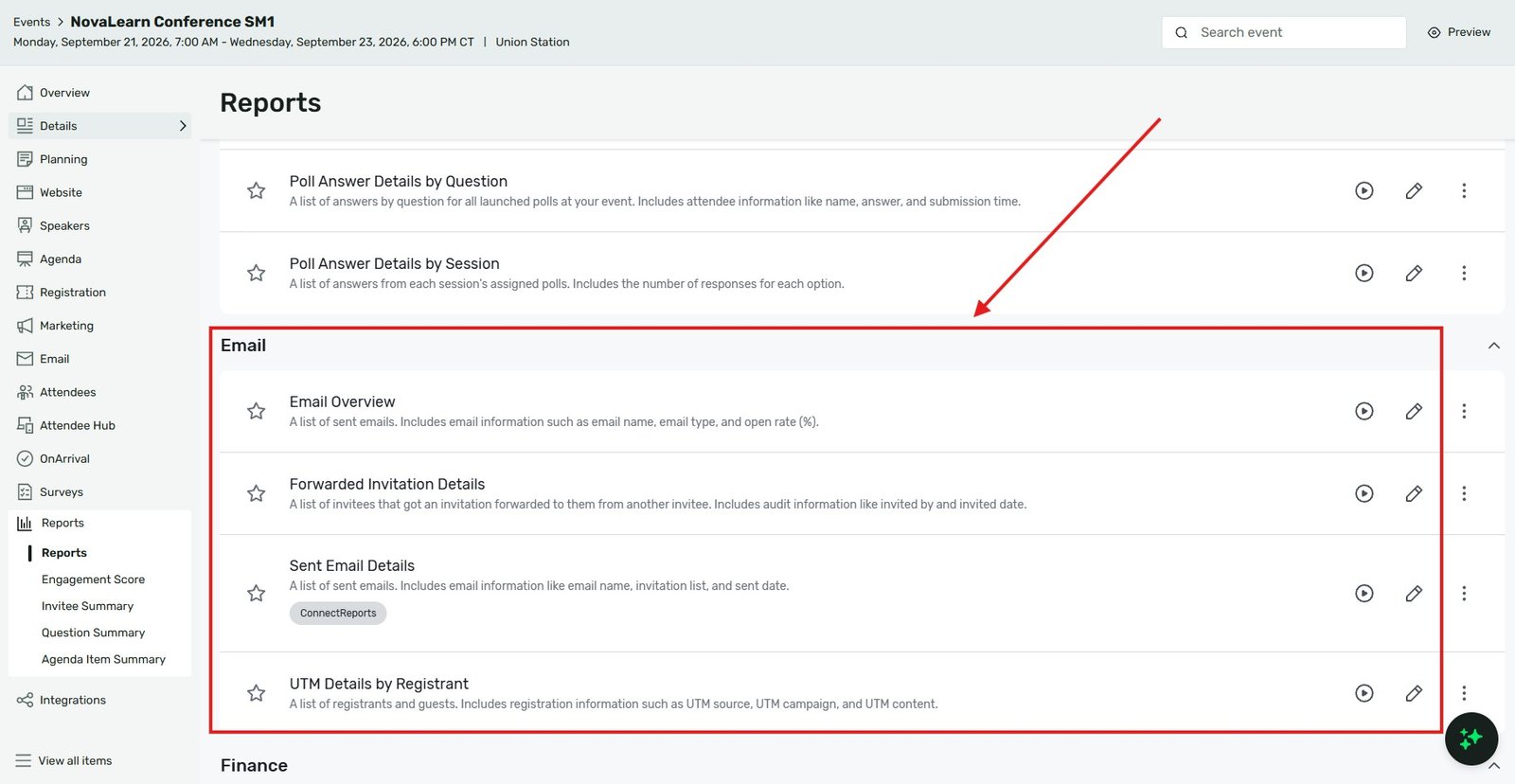
From the left-hand Event navigation, go to Reports > Reports.
Navigate to the Email tab or category.
Run the specific email report (such as the “Email Delivery Details” report) for the message in question.
Look at the metrics for Bounced, Dropped, and Failed.
Review the specific bounce reason provided in the report. (e.g., “Invalid Email Address” means you have a typo, while “Blocked by Receiving Server” means their IT department is rejecting you).
2. Verify the Contact’s "Opt-Out" Status
Cvent is strictly compliant with global spam laws (like GDPR and CAN-SPAM). If an invitee ever clicked “Unsubscribe” on any previous email sent from your Cvent account—even years ago for a totally different event—Cvent will automatically block all future emails to that address.
How to Fix It:
Go to your global Contacts > Address Book.
Search for the invitee who isn’t receiving emails.
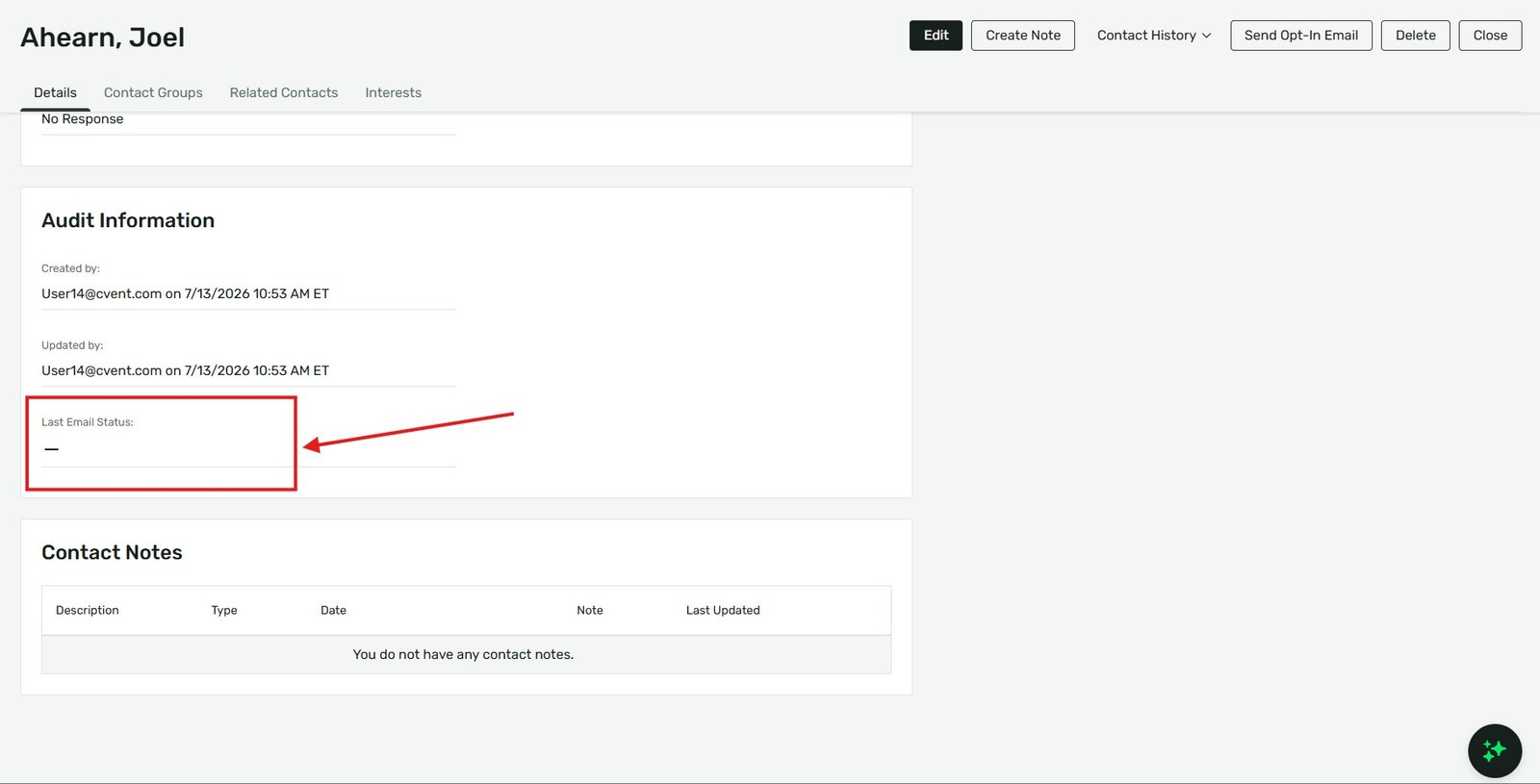
Open their contact record and look at the Email Status section.
Check if they are marked as Opted Out or Do Not Email.
The Fix: By law, you cannot manually un-check the Opted Out box for them. The attendee must physically resubscribe by clicking a link to your organization’s Cvent subscription management page, or you must send them a system-generated opt-in confirmation email.
3. Ensure the Event is Actually "Active"
This is a very common oversight. Cvent protects you from accidentally emailing thousands of people while you are still building your event. Because of this, standard event emails will not trigger if the event is in “Pending” status.
How to Fix It:
Look at the top right corner of your event dashboard.
If it says Pending, your scheduled invites or automatic confirmation emails are being held in a queue.
Once you change the status to Active, any triggered emails (like confirmations for test registrations) will fire, and you can freely schedule your invitations. (Note: You can still send manual “Test Emails” to yourself while in Pending mode).
4. Conquer Corporate Firewalls (The IT Whitelist)
If the email isn’t bouncing, the contact is opted-in, and the event is active, the email is likely being quarantined by the recipient’s corporate spam filter before it ever hits their inbox. Corporate firewalls frequently block automated marketing platforms like Cvent.
How to Fix It:
Isolate the issue: Are only attendees from a specific company (e.g.,
@microsoft.com) missing the email? If yes, it is definitely a firewall issue.You must reach out to the attendees (or your internal IT department if it’s an internal event) and ask them to whitelist Cvent’s IP addresses and domains.
Direct them to Cvent’s official documentation for whitelisting, which includes adding
cvent.comandcvent-planner.comto their safe sender list, alongside Cvent’s specific IP sending ranges.Advanced: Ensure your own organization has configured SPF and DKIM records for your sender email address. This proves to receiving servers that Cvent is authorized to send emails on your company’s behalf.
Agency Pro-Tip: If an attendee urgently needs their confirmation email and their corporate firewall is blocking it, temporarily change their email address in their registration record to their personal Gmail or Yahoo account, hit “Resend Confirmation,” and then change it back. Consumer email providers have much looser firewalls than corporate IT networks.
Key Takeaways
Run the Email Report: Don’t guess why an email failed. Pulling the specific email report tells you exactly if it was a bad address, a server block, or a dropped message.
Respect the Opt-Out: If a user is marked as opted-out globally, Cvent will refuse to send them invites. They must manually opt back in.
Pending means paused: Live event emails (like auto-confirmations and scheduled invites) will not send unless the event status is set to Active.
Spot the firewall pattern: If multiple people from the same company aren’t getting your emails, you need to contact their IT department to whitelist Cvent’s sending domains.