
You asked your attendees what their dietary restrictions were, or you sent out a post-event survey asking them to rate the keynote speaker. But when you navigate to the reporting tab and pull the data, the columns are blank.
Usually, the data isn’t actually lost. In Cvent, missing survey or question data almost always boils down to running the wrong report type or accidentally filtering out the respondents. Here is how to track down your missing answers.
1. The "Registration" vs. "Feedback" Mix-Up
The most common reason planners cannot find their data is that they are looking in the wrong category. Cvent treats questions asked during registration completely differently than questions asked after the event.
How to Fix It:
If the question was on the registration form: Do not run a survey report. You need to run a registration report. Navigate to Reports > Reports and run the Answers to Registration Questions report (or add the specific question as a column in your standard Registration Details report).
If the question was in a post-event survey: Navigate to Reports > Reports, click the Surveys tab, and run the Survey Answers Details by Question report. Registration reports will never show post-event feedback.
2. Clear Your Hidden Report Filters
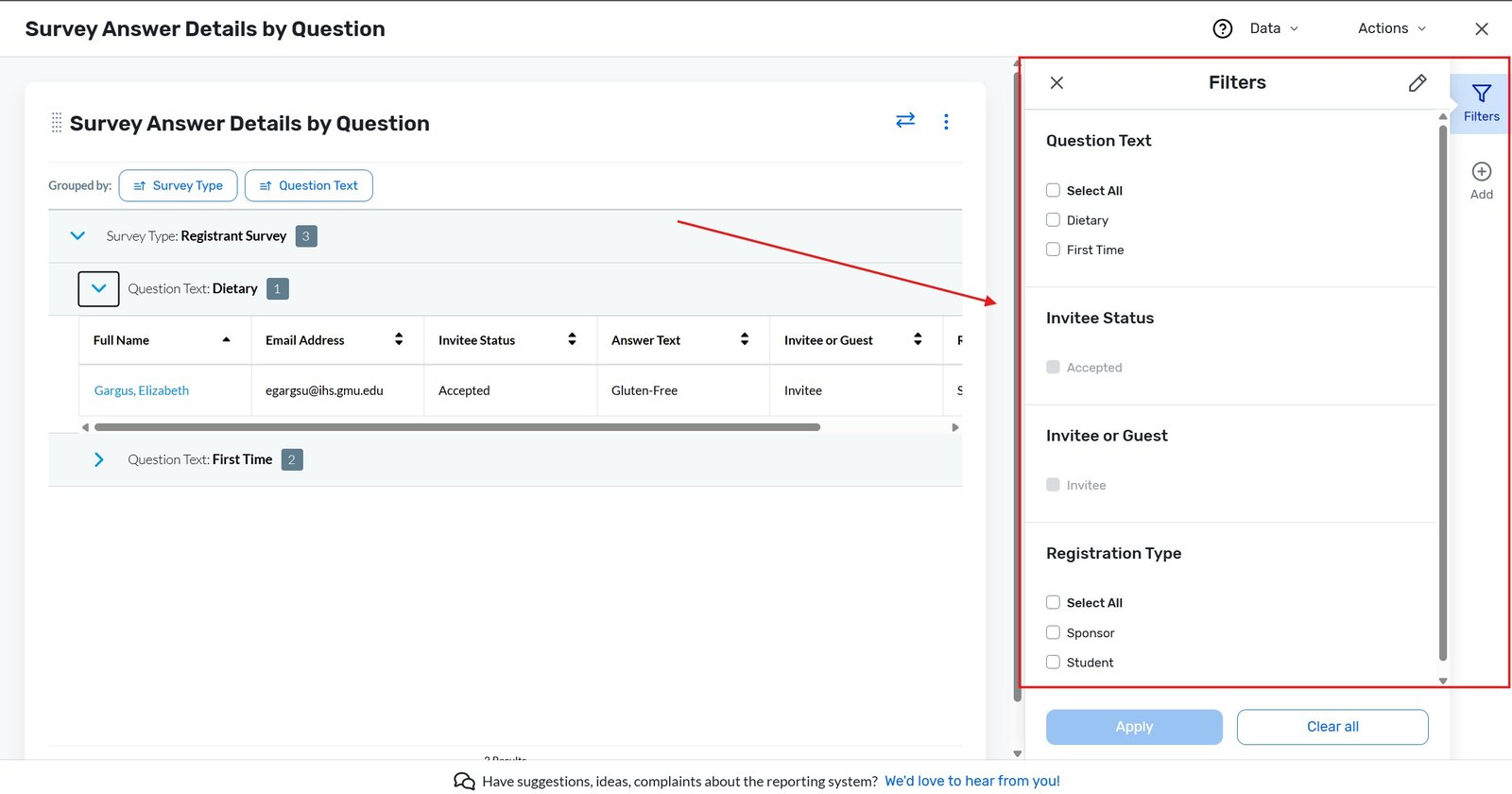
Cvent reports apply default filters that often hide data. For example, a feedback report might only show answers from people marked as “Attended.” If you forgot to mark your attendees as “Attended” using the OnArrival app or manual updates, their survey answers might be hidden.
How to Fix It:
Run your chosen report.
In the top right corner of the report, click the Data tab (or Filters depending on the report type).
Check the Registration Status and Participation Status filters.
Check all applicable boxes (e.g., Accepted, Attended, Cancelled) to ensure you are casting the widest net possible.
Click Run to refresh the data.
3. Why Names Are Missing (Anonymous Surveys)
Sometimes the answers are there, but the respondent’s name is missing, showing up as “Anonymous.” If this happens, it is not a reporting glitch; it is a survey configuration setting.
How to Fix It (For Future Surveys):
From the Event navigation, hover over Surveys, then click Event Feedback (or General/Session Feedback).
Open the survey and go to the Details tab.
Look at the Anonymity setting. If it was set to “Anonymous,” Cvent permanently strips identifying data from the responses to protect the attendee’s privacy.
Note: You cannot retroactively un-anonymize a survey. For future surveys, ensure this is set to “Tracked” if you need to know who submitted which answer.
4. Wait, Did They Actually Submit It?
If an attendee claims they answered a survey, but their data isn’t in a correctly filtered report, they likely abandoned the form before hitting the final submit button.
How to Verify:
Navigate to Reports > Reports and run the Survey Respondent Details report.
This report shows the status of the survey for each invitee.
If their status says In Progress instead of Completed, their answers will not pull through to your final data reports. They must click the final submit button to lock in their responses.
Key Takeaways
Match the report to the timeline: Registration questions require Registration reports. Post-event surveys require Survey reports.
Check your statuses: Default filters hide data. Ensure your report is pulling in everyone, regardless of whether they are marked as “Accepted” or “Attended.”
Anonymous is permanent: If a survey is configured to be anonymous, there is no way to force Cvent to reveal the respondent’s identity in the reports.
Look for “In Progress”: A survey must be fully completed and submitted for the answers to populate in your final export.