
When a venue suddenly cancels or a keynote speaker pushes their session back by two hours, fixing the website is only half the battle. You must actively notify attendees who have already registered, as they will not receive automated updates for data they already processed.
Here is how to update the system and execute a targeted mass-communication to ensure nobody shows up at the wrong building.
1. Update the Core Event Data
Before emailing anyone, update the backend data so that any new registrants see the correct information, and so your email data tags pull the correct locations.
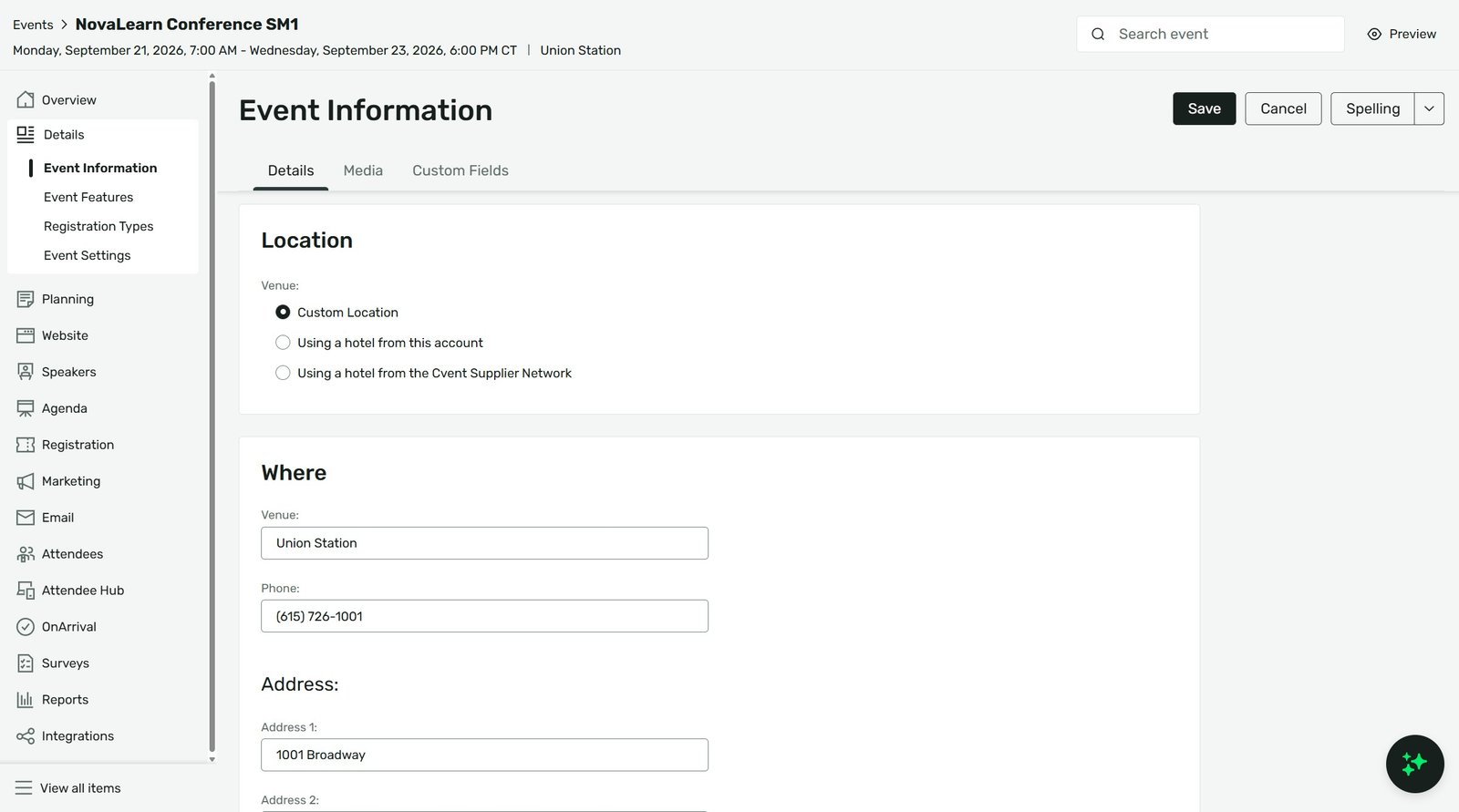
Navigate to Event Details > Event Information.
Update the physical address, dates, or times in the core fields.
Open the Site Designer to manually update any static text widgets on your home page or agenda page that mention the old details.
Click Publish to push the changes live.
2. Create the Urgent Update Email
Standard confirmation emails only send upon initial registration. To alert existing attendees, you must manually trigger a new broadcast.
From the Event navigation, go to Email > Event Emails.
Click Create Email and choose a blank template or a pre-built update template.
Draft your message. Use bold, clear subject lines like “URGENT VENUE CHANGE: [Event Title]”.
Insert the {[E-LOCATION]} or {[E-START DATE]} data tags so the system automatically pulls the fresh data you updated in Step 1.
3. Target the Right Audience
Sending an update to the wrong list causes mass confusion. You only want to email people who are actually planning to attend.
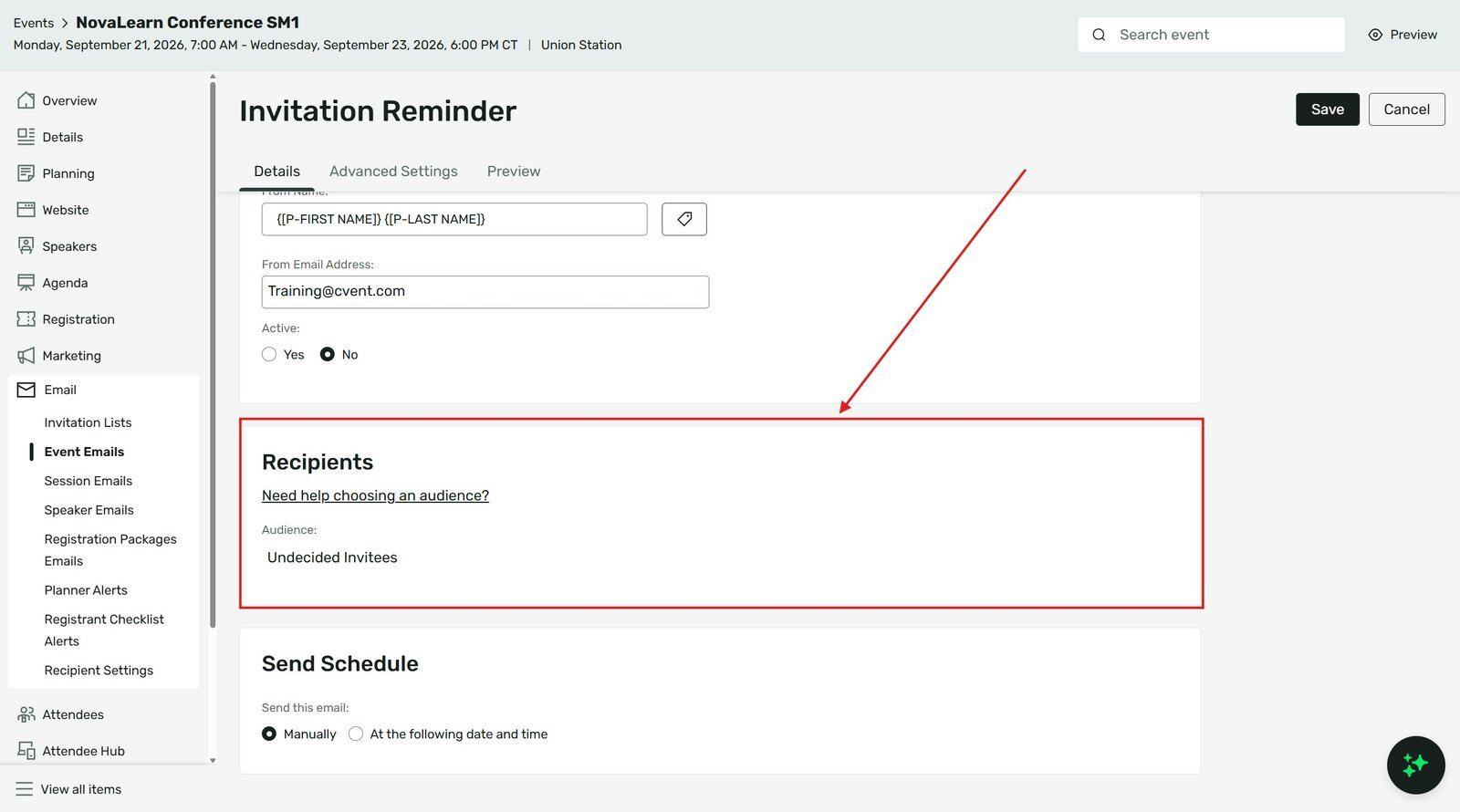
In the email settings, navigate to the Audience step.
Select Accepted Registrants. (Do not select “All Invitees,” or you will email people who already declined or opted out).
If the change only affects a specific session (e.g., a workshop room change), toggle on Advanced Criteria to apply conditional logic, explicitly targeting only the attendees actively registered for that specific agenda item.
Schedule the email to send immediately.
Agency Pro-Tip: Build an “Urgent Alert” email template in your global account that strips out the heavy promotional graphics and uses a plain, text-heavy layout with a red header. Attendees often ignore highly formatted marketing emails, but they will immediately read a plain-text logistical alert.
Agency Pro-Tip: If the change happens within 24 hours of the event, email is too slow. If you are utilizing the Cvent mobile app, send a Push Notification directly to their devices, and utilize Cvent’s native SMS text features if you captured mobile numbers during registration.
Key Takeaways
Fix the source first: Update the core Event Information and Site Designer before drafting any emails.
Use data tags: Let Cvent pull the new venue or time automatically using data tags in your email body to avoid typos.
Filter your audience: Only email “Accepted Registrants,” and drill down further if the change only impacts a specific session list.
Bypass graphics for urgency: Use a stripped-down, high-contrast email template so attendees recognize it as a logistical alert.