Reporting & Data

Fixing Missing Data in Cvent Survey and Feedback Reports

You asked your attendees what their dietary restrictions were, or you sent out a post-event survey asking them to rate the keynote speaker. But when you navigate to the reporting tab and pull the data, the columns are blank.

Usually, the data isn’t actually lost. In Cvent, missing survey or question data almost always boils down to running the wrong report type or accidentally filtering out the respondents. Here is how to track down your missing answers.

1. The "Registration" vs. "Feedback" Mix-Up

The most common reason planners cannot find their data is that they are looking in the wrong category. Cvent treats questions asked during registration completely differently than questions asked after the event.

How to Fix It:

  • If the question was on the registration form: Do not run a survey report. You need to run a registration report. Navigate to Reports > Reports and run the Answers to Registration Questions report (or add the specific question as a column in your standard Registration Details report).

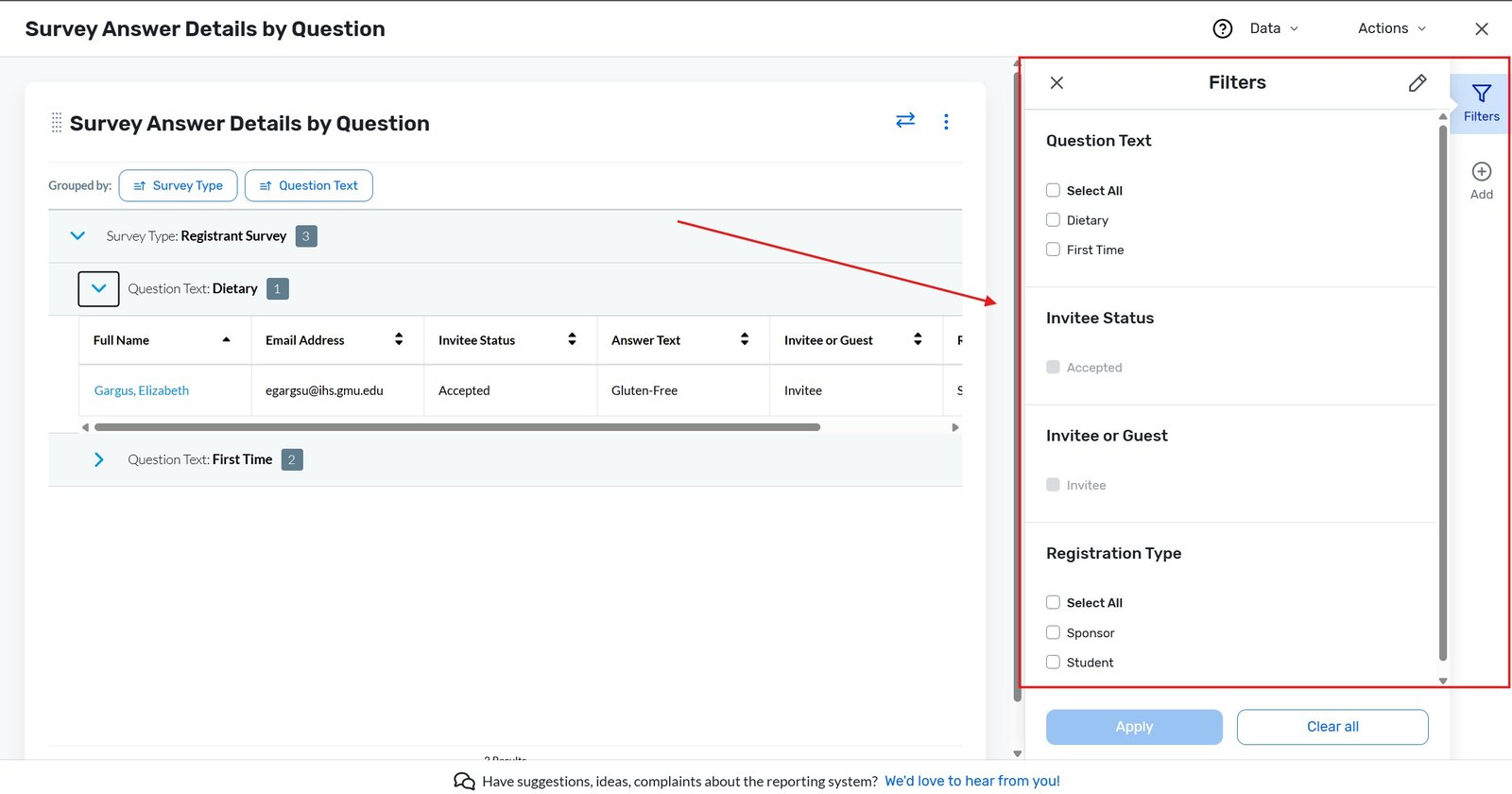
  • If the question was in a post-event survey: Navigate to Reports > Reports, click the Surveys tab, and run the Survey Answers Details by Question report. Registration reports will never show post-event feedback.

2. Clear Your Hidden Report Filters

Cvent reports apply default filters that often hide data. For example, a feedback report might only show answers from people marked as “Attended.” If you forgot to mark your attendees as “Attended” using the OnArrival app or manual updates, their survey answers might be hidden.

How to Fix It:

  1. Run your chosen report.

  2. In the top right corner of the report, click the Data tab (or Filters depending on the report type).

  3. Check the Registration Status and Participation Status filters.

  4. Check all applicable boxes (e.g., Accepted, Attended, Cancelled) to ensure you are casting the widest net possible.

  5. Click Run to refresh the data.

Clearing the hidden reports | Attendeegain

3. Why Names Are Missing (Anonymous Surveys)

Sometimes the answers are there, but the respondent’s name is missing, showing up as “Anonymous.” If this happens, it is not a reporting glitch; it is a survey configuration setting.

How to Fix It (For Future Surveys):

  1. From the Event navigation, hover over Surveys, then click Event Feedback (or General/Session Feedback).

  2. Open the survey and go to the Details tab.

  3. Look at the Anonymity setting. If it was set to “Anonymous,” Cvent permanently strips identifying data from the responses to protect the attendee’s privacy.

  4. Note: You cannot retroactively un-anonymize a survey. For future surveys, ensure this is set to “Tracked” if you need to know who submitted which answer.

4. Wait, Did They Actually Submit It?

If an attendee claims they answered a survey, but their data isn’t in a correctly filtered report, they likely abandoned the form before hitting the final submit button.

How to Verify:

  1. Navigate to Reports > Reports and run the Survey Respondent Details report.

  2. This report shows the status of the survey for each invitee.

  3. If their status says In Progress instead of Completed, their answers will not pull through to your final data reports. They must click the final submit button to lock in their responses.

Key Takeaways

  • Match the report to the timeline: Registration questions require Registration reports. Post-event surveys require Survey reports.

  • Check your statuses: Default filters hide data. Ensure your report is pulling in everyone, regardless of whether they are marked as “Accepted” or “Attended.”

  • Anonymous is permanent: If a survey is configured to be anonymous, there is no way to force Cvent to reveal the respondent’s identity in the reports.

  • Look for “In Progress”: A survey must be fully completed and submitted for the answers to populate in your final export.

Fixing Missing Data in Cvent Survey and Feedback Reports Read More »

Why Some Mandatory Question Answers Are Missing From Your Cvent Report (And How to Prevent It)

This is a real problem people run into often enough that it shows up regularly in the Cvent Community forum: a question is set to required, registrants clearly had to answer it to complete registration, and yet when the report is exported, some rows have an answer and others are blank. It looks like a bug. Most of the time, it isn’t — it’s one of a handful of setup or report-building issues that are easy to miss.

Here’s what’s actually going on, and how to check each cause.

Cause 1: The question was added after some people already registered

“Mandatory” only applies going forward from the moment a question is added and published to the registration form. If you added or edited a question after registration had already been open for a while, everyone who registered before that change simply never saw it — so there’s nothing for them to have answered. Their blank answer isn’t a report error; it reflects the registration form they actually filled out.

How to check: Compare the registration timestamps of the blank rows against the date you added or last edited the question. If the blanks cluster before that date, this is your cause.

Cause 2: The question is required only for certain registration types or categories

A question can be marked mandatory overall but only actually required for specific attendee categories — this shows as a “partial” requirement in the question settings rather than a flat “required for everyone.” If a registrant’s category wasn’t included in that requirement, they were never forced to answer it, even though the question looked mandatory when you were viewing it as an admin.

How to check: Open the question’s settings and check whether the “Required” status is set per category rather than globally. Cross-reference the blank rows against which registration type or category those registrants belong to.

Cause 3: The question has conditional (branching) logic

If the question only displays based on an earlier answer — for example, “What size booth do you need?” only shown to people who answered “Exhibitor” to a prior question — then anyone who didn’t trigger that condition never saw the question at all. It wasn’t skipped; it was never shown, and that’s expected behavior, not a data loss issue.

How to check: Look at the question’s display logic settings and trace which earlier answer(s) trigger it. Then check whether the blank rows share a common answer to that earlier question that doesn’t trigger the branch.

Cause 4: The report doesn't include that question as a column

This is the most common cause, and it’s a report-building issue rather than a registration issue. If you’re using a standard or previously-saved report template, it may not automatically pull in a question added later, or it may be scoped to a specific set of fields that don’t include this one. The registrant did answer it — the data exists — the report just isn’t showing that field.

How to check: Build a fresh custom report (rather than reusing an old saved one) and explicitly add the question as a field/column. If the answers appear now, this was the cause.

Cause 5: The question was deleted or deactivated after the deadline passed

If a question was deleted (not just deactivated) after registration closed, its answers may no longer appear in the standard question summary report, even though people did answer it while it was live. This is a known point of confusion — deleting a question to “clean up” a form after a deadline can quietly remove it from reporting as well.

How to check: Look in your Inactive Questions or Question Library (rather than the active question list) — if the question still exists there but was deactivated rather than deleted, its historical answers are usually still reportable. If it was fully deleted, you may need to pull an older saved report generated before the deletion, or check with support about whether the raw response data is still retrievable.

Cause 6: The registrant was added manually, not through the registration form

Registrants added directly by an admin (walk-ins, manual entries, imports) don’t always go through the same form flow as someone self-registering online — which means they can be added without ever being prompted for that question, mandatory or not.

How to check: Cross-reference the blank rows against your registration source/method field, if your report includes one. Manual or imported registrations are the likely source.

Prevention checklist for future events

  • Finalize your required questions before opening registration — adding mandatory questions mid-registration-period is the single biggest cause of this issue.
  • When a question only needs to apply to certain attendee types, use category-specific requirements deliberately, and document which categories they apply to somewhere your team can reference later.
  • Build reports fresh (or update saved templates) whenever you add a new question, rather than assuming older templates will pick it up automatically.
  • Deactivate questions instead of deleting them once a deadline passes, if you may need to report on the answers later.
  • If you’re adding registrants manually, use a process that walks through the same required fields as the public form, rather than a bare-bones admin entry.

The takeaway

A blank answer for a “mandatory” question in a Cvent report is almost always explainable once you check the timing of the question, whether it was required for that specific registrant’s category, whether conditional logic kept it hidden, and — most often — whether the report itself was actually pulling that field in the first place. Work through these in order and the pattern in your blank rows will usually point straight to the cause.

Why Some Mandatory Question Answers Are Missing From Your Cvent Report (And How to Prevent It) Read More »

Got an event approaching soon

15987
AttendeeGain Logo
Select an Option
Scroll to Top