
Offering a promo code for your event is a great way to drive registrations, but a misconfigured discount can quickly turn into an accounting nightmare. If your attendees are seeing a “Discount code exceeds total balance due” error, or if they are accidentally getting premium add-on sessions for free, your discount logic is too broad.
Here is a step-by-step guide to locking down your Cvent discount codes so they only apply exactly where you want them to.
1. Restrict the Discount to Specific Items (The #1 Culprit)
By default, planners often apply a discount code to the “Entire Registration.” This means a 50% off code reduces the cost of the admission ticket, but it also slashes the price of optional networking dinners, workshops, or VIP add-ons in the attendee’s cart.
How to Fix It:
Navigate to Registration > Pricing > Discounts.
Click on the name of the problematic discount code to edit it.
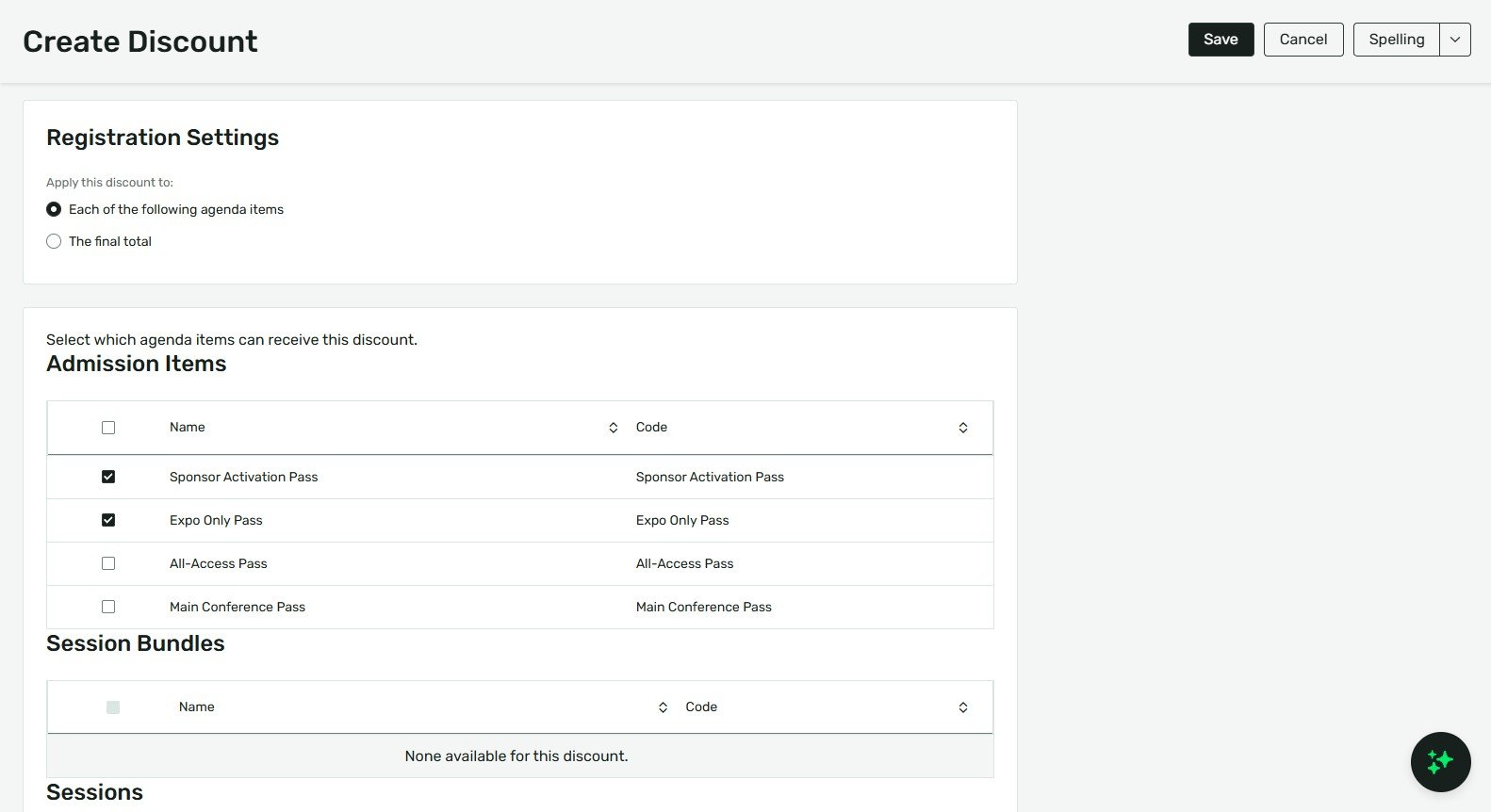
Scroll down to the Apply Discount To section.
Change the selection from Entire Registration to Specific Items.
A checklist will appear. Select only the exact Admission Items that should be discounted. Leave your premium sessions or quantity items unchecked.
2. Fix Flat-Rate vs. Percentage Errors
The “exceeds total balance due” error almost always happens when you use a flat-rate deduction (e.g., $100 off) on an item that costs less than the discount itself (e.g., a $50 session). Cvent systems generally block checkouts that result in a negative balance.
How to Fix It:
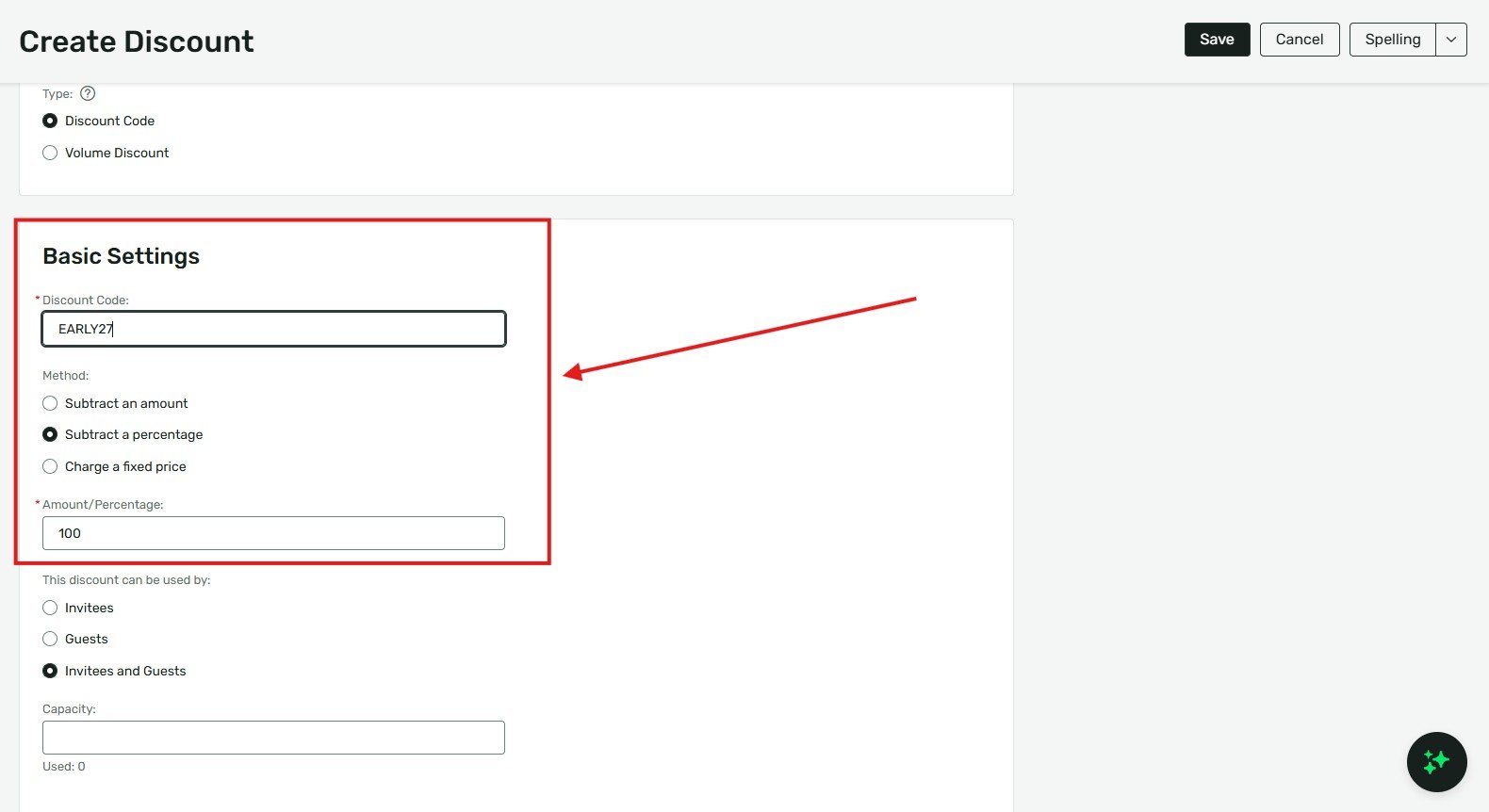
Under the Discount Details section of your code, look at the Discount Type.
If you are trying to give someone a completely free ticket (a “comp”), do not type in the exact dollar amount of the ticket.
Instead, change the Discount Type to Percent and enter 100. This ensures the balance simply zeroes out, regardless of whether the attendee picks a $50 tier or a $100 tier.
3. Prevent Attendees from Stacking Discounts
If you are already running an automated “Early Bird” pricing tier, you probably don’t want attendees applying a 20% off speaker promo code on top of it. Cvent allows multiple discounts to trigger unless you explicitly tell the system to stop.
How to Fix It:
While editing your discount, scroll down to Advanced Settings.
Look for the Combination Rules or Stacking options.
Check the box that says Cannot be combined with other discounts.
Note: If you check this, Cvent will automatically apply whichever single discount gives the attendee the best deal.
4. Control Group Registration Logic
If a user registers a group of 5 people and applies a $50-off code, does that mean $50 off the total invoice, or $50 off per person? If this isn’t defined, groups can get massively undercharged.
How to Fix It:
In the discount settings, locate the Group Registrations rule.
Select whether the code should apply to Each registrant in the group (which multiplies the discount) or The group as a whole (which applies the flat rate just once to the master invoice).
Agency Pro-Tip: Always test the checkout flow using a test registrant. Add the core admission, toss a paid session into the cart, and apply the code on the payment page to verify it only discounts the admission item.
Key Takeaways
Target your discounts: Never leave a discount applied to “Entire Registration” if you sell paid add-ons or sessions. Always restrict it to “Specific Items.”
Use percentages for comps: If you want to make a ticket completely free, use a 100% discount rather than typing in a flat dollar amount to prevent negative balance errors.
Stop the stacking: Always check your advanced settings to ensure discount codes cannot be combined with existing Early Bird or Volume discounts unless intentionally designed that way.
Always test: Run a test registration with paid sessions in your cart to ensure the promo code strictly discounts the admission item before publishing the code.